A report opens on the most serious thing we found, then three tabs: Overview, Findings and Inventory. This guide goes through each part, in the order you meet them.
Read the full video transcript
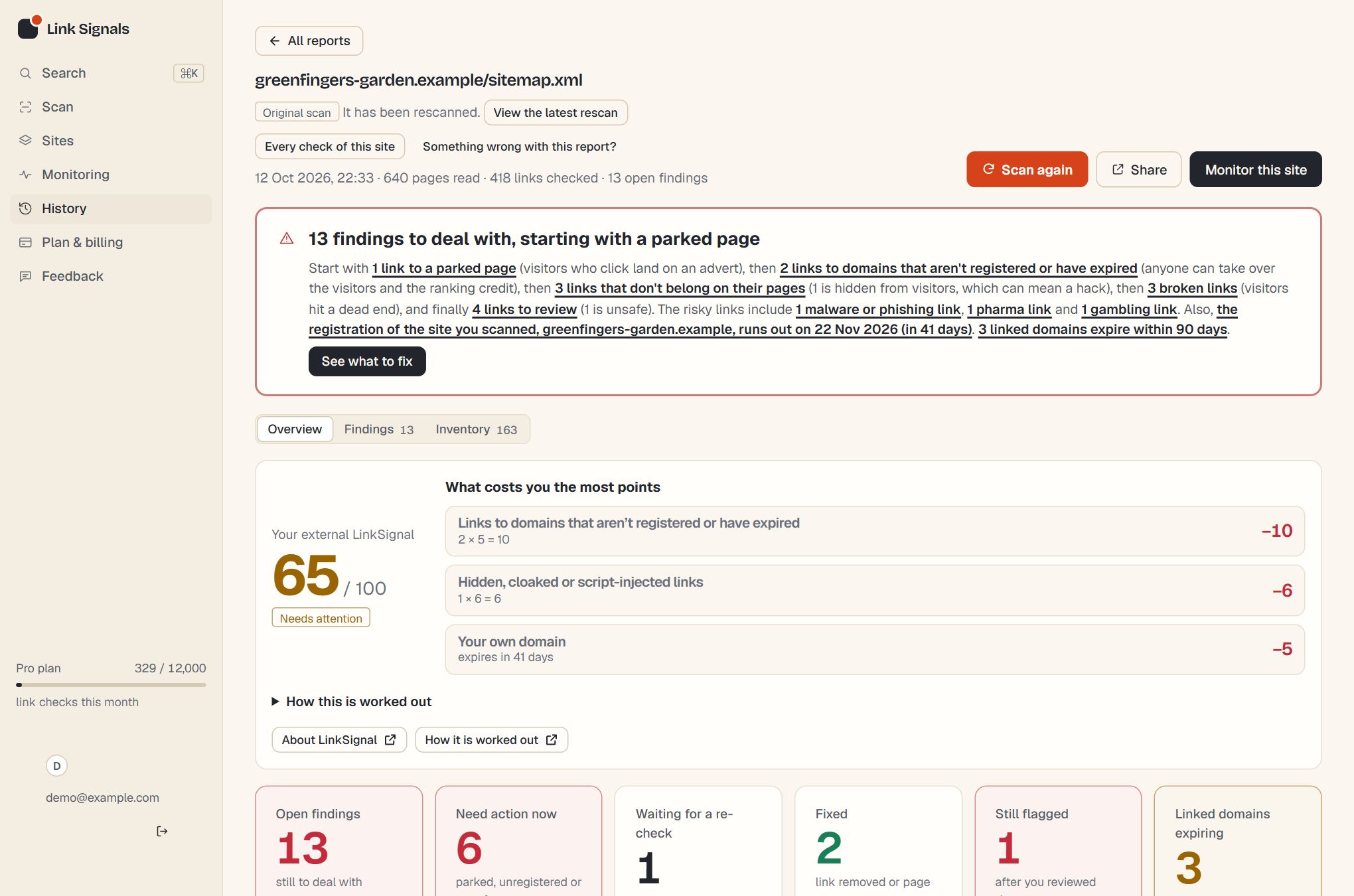
At the top of the overview are the numbers that matter right now, large: how many findings are open, how many need action now, how many are waiting for a re-check, resolved or still flagged, and how many linked domains expire soon. Under them is a panel to re-check the links you’ve fixed without scanning the whole site.
The headline
The box at the top says the most serious finding in plain words, what it means and what to do about it, with a button to the findings behind it. It follows the same five priorities as everything else in the report. How findings are prioritised.
Overview: the action plan and the cards
The action plan is a short paragraph that takes the three most urgent priorities with findings and says what to do about each, in order. Under it is a card for each part of the scan that has something in it, most urgent first. Each card has a priority, a few numbers, one sentence on what to do, and a button into the findings or the inventory. Parts with nothing in them aren’t given a card of zeros: they are listed in one line underneath.
| Card | What it covers |
|---|---|
| Parked domains | Links to a domain that is for sale because the site you linked to has gone. |
| Not registered or expired | Links to a domain nobody holds, or whose registration has run out, and how many linked domains expire in the next 90 days. |
| Out of context links | Links hidden from visitors, shown only to search engines, written by encoded script, or unrelated to their page. |
| Broken links (404) | Links to pages that are gone. It also counts server errors and sites that couldn’t be reached or read. |
| Needs review | Anything else flagged as risky or unsafe, unsafe first. |
| What the risky links are about | One card for each kind of content found: malware, adult, pharma, drugs, gambling, payday loans and so on, most serious first, each with its counts and a button to those links. |
| Action plan progress | Appears once you have marked findings reviewed: open, waiting for a re-check, resolved and still flagged. |
| Ranking credit | Flagged links that are still followed, and how your links are marked nofollow, sponsored or ugc. |
| Your site | When your own domain and security certificate run out, and how your site serves HTTPS. |
| Links and HTTPS | The share of your links that use HTTPS, and how many sites you link to. |
Findings
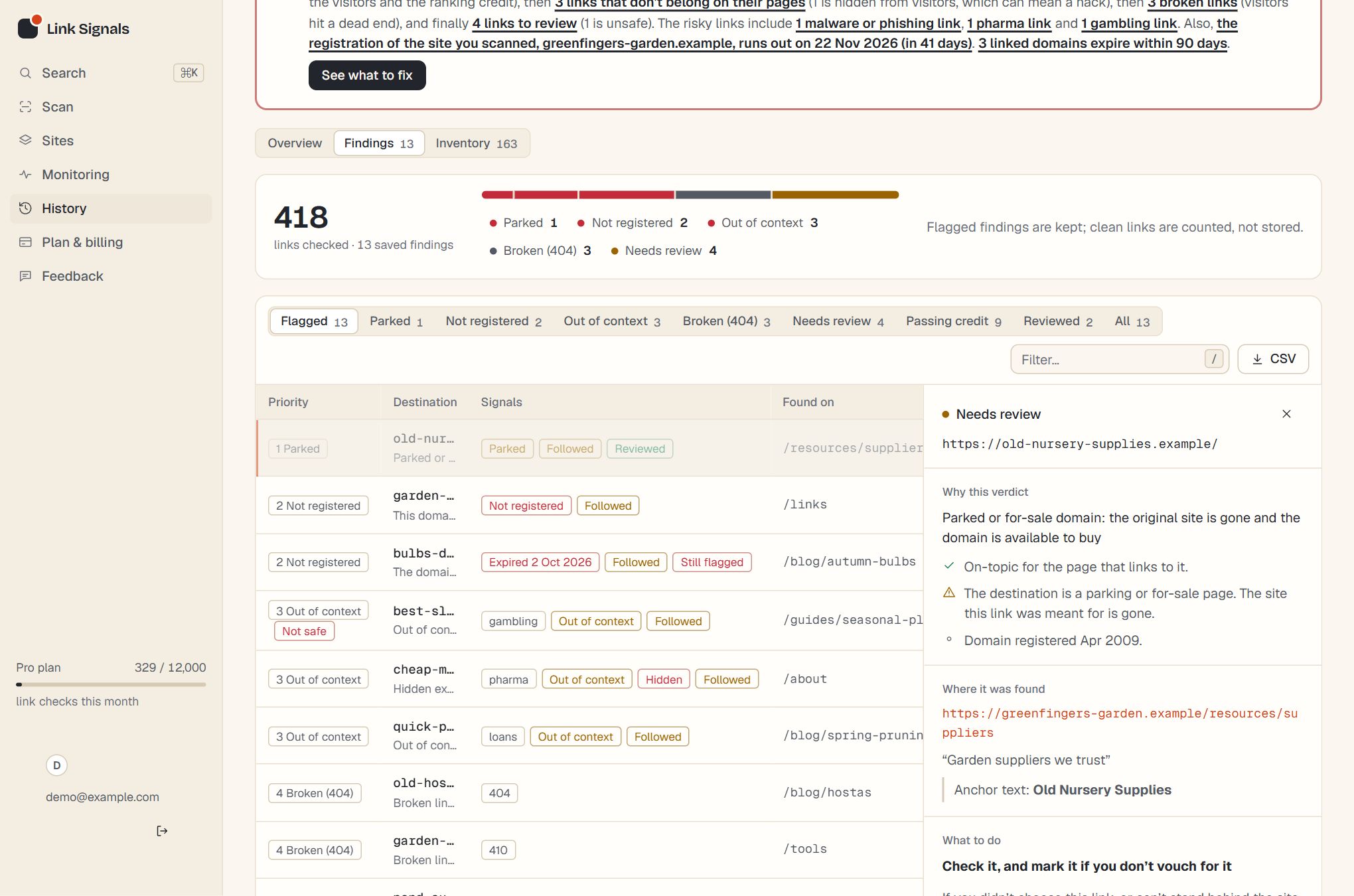
The tabs above the table are the five priorities, in your order, with the number in each. Flagged shows all of them. Passing credit shows flagged links that search engines still follow. Reviewed appears once you have reviewed something. All shows everything saved. Every finding is in exactly one priority, so the tabs add up to the flagged total.
The filter box searches the destination address, its title, the anchor text, the reason and the page the link was found on.
Reading a row
Unrelated promotional link to a payday-loan site from a contact page.
/contact · Anchor text “read more”- Priority: which of the five it belongs to, and Not safe if the destination is on a blocklist or judged harmful.
- Destination: the host in bold, the path in grey, and a line of explanation underneath.
- Signals: the category, badges such as Hidden, Expired or Followed, any HTTP error code, and whether you have reviewed it.
- Found on: the path of the page the link was first found on.
The detail panel
Select a row to open the detail panel. It shows why the finding was made, the evidence for it, what to do about it (including which rel marker to add, where that helps), where the link was found, the anchor text and the destination’s own description.
Mark reviewed is saved to your account, not just your browser. The next scan or monitoring check reads the page again and tells you whether it is resolved. Copy URL copies the destination. Open opens it in a new tab, so be careful with anything marked Not safe.
Inventory
The third tab holds the lists behind the overview: your own domain, certificate and HTTPS set-up, linked domains about to expire, how your links are marked, the sites you link to most, and the links you have resolved.
Keyboard shortcuts
| Key | Does |
|---|---|
j or ↓ | Select the next row |
k or ↑ | Select the previous row |
/ | Jump to the filter box |
Esc | Close the detail panel |
What is saved in History
Every scan is saved in History with its counts. The saved report keeps the flagged findings, up to 500 of them. Links with nothing wrong are counted, not stored. Every check of the same site is also gathered on the Sites page.
In your report
The Inventory tab holds the lists behind the Overview cards. Each panel has a button beneath it, introduced by “About this list:”, that opens the page which explains it in a new tab. Panels appear only when they have something to show.
Sites you link to
| Column | What it shows |
|---|---|
| Domain | The host with www. removed. An amber HTTP chip means at least one link to that host uses plain http://. |
| Links | How many of the links the scan checked go to that host. |
| Result | The most serious verdict among those links, or a dash for No known issues. |
| Registered | The year the domain was registered, or a dash if the registry does not say. |
The heading reads, for example, “1,240 links to 86 sites · 97% HTTPS”, where the percentage is the share of checked links that use https://. The table lists the 20 most linked sites, with the more serious verdict first when two have the same number of links, and says “Showing the 20 most linked of” the total when there are more.
Links and HTTPS
The Links and HTTPS card on the Overview is the summary of that table. Its numbers are Links using HTTPS (a percentage), Links using plain HTTP and Sites linked to. It reads Worth a look (grey) when any link uses plain http:// and its advice is to change them to https:// where the other site supports it. The See the sites button opens the Inventory tab. When every link uses HTTPS the card is replaced by Links and HTTPS in the green “Nothing found in” line.
The other lists
- Your site shows your own domain, certificate and HTTPS set-up. See check your own domain and certificate.
- Linked domains expiring within 90 days names up to ten linked domains that are about to run out. See expired domain links.
- How your links are marked counts followed, nofollow, sponsored and ugc links. See which rel should a link have.
- Resolved since you reviewed them lists links that were checked again and are fixed. See mark a finding reviewed.
The Inventory tab appears only when the scan recorded a summary. A report saved before summaries were kept shows just the Overview and Findings.
How this counts in your LinkSignal
The report opens with your site’s external LinkSignal, a score out of 100 with the rows that cost points. Each row opens the findings or inventory behind it, so the quickest way to raise the score is to work down the biggest cost. See the LinkSignal overview for what each row means and how the score is worked out for the points. LinkSignal is Link Signals’ own metric, worked out only from what this tool finds, and it is not connected to any search engine or third-party score.
Run a scan and open the report to see each of these parts.