Choose Sites in the sidebar. Each site you have scanned or monitored is listed once, with how many checks it has, what needs action now, and whether it has more or fewer flagged links than the check before.
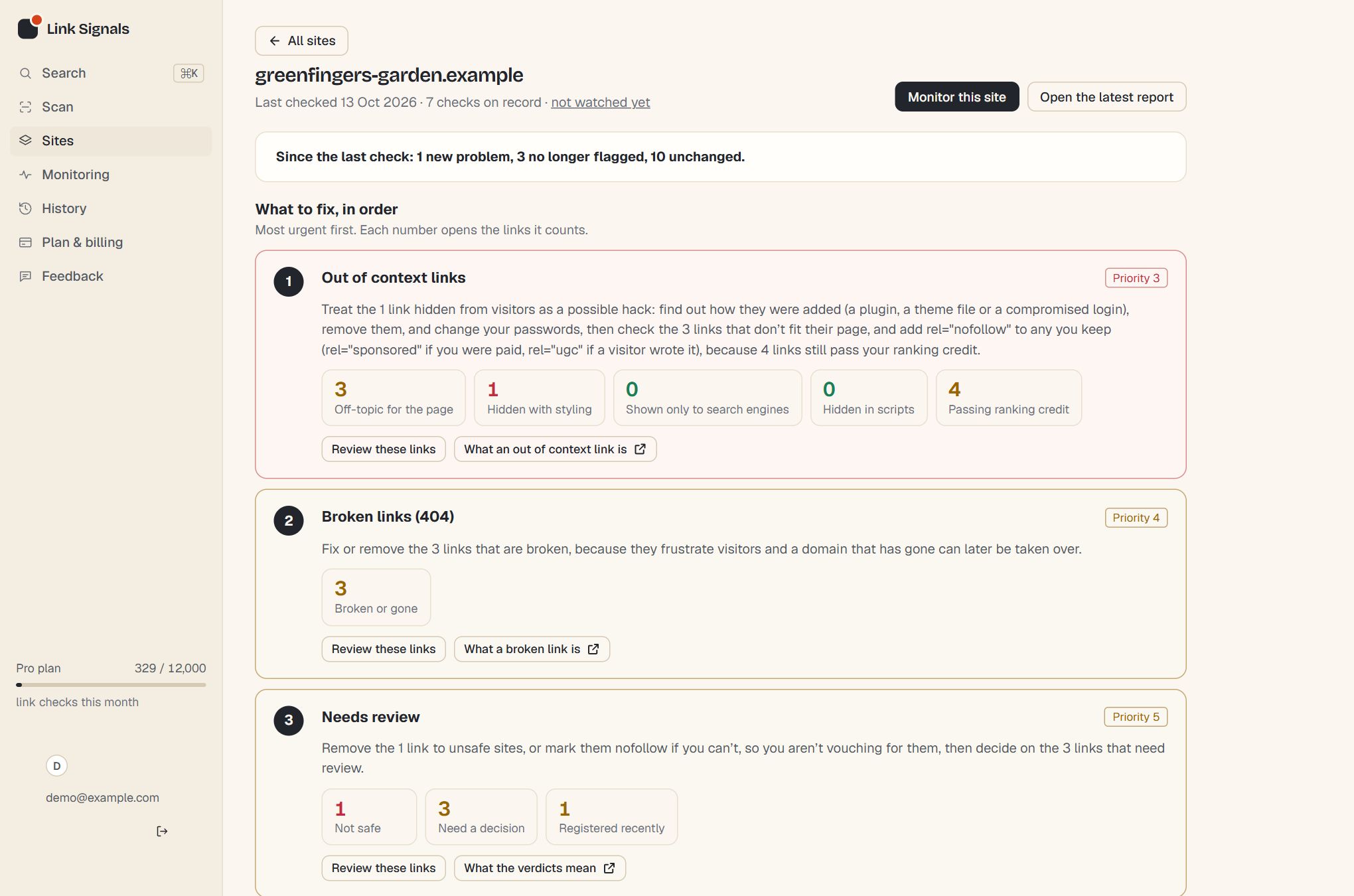
What a site page shows
| Part | What it tells you |
|---|---|
| The sentence at the top | What changed since the previous check: new problems, ones that got worse, ones no longer flagged, and how many are unchanged. |
| The numbers | What needs action now, how many links are flagged in total, linked domains about to expire, and when your own domain and certificate run out. |
| Flagged links over time | One bar for each check. Amber is everything flagged, red is what needs action today. |
| New and no longer flagged | The links behind the sentence, with the reason each one was flagged. |
| Checks | Every check on record with a link to its full report. The chart’s numbers are in this table. |
A one-off scan and a monitoring check both count, so a site you have monitored builds up its history without any extra steps. Monitoring is what keeps the chart filling in by itself.
Why a history beats a single scan
A scan only says how a site looks today. Whether you are getting on top of the problem is a question about the last few checks. A site with 20 flagged links might be improving fast after a clean-up, or getting worse after a plugin update, and the number on its own can’t tell you which.
How to read the chart
- A falling amber bar means fewer links are flagged than before: your clean-up is working.
- A falling red bar means fewer things need action today, which is the number that matters most.
- A sudden rise after a quiet period usually means something changed: a new plugin, a hacked page, a batch of imported posts or a partner site that was sold.
- A flat line with a high number means the findings are known and nobody has dealt with them. This is the one to act on.
Using it to check a fix
After you remove or replace links, re-check them or run a new scan. Then open the site page and look at the sentence at the top. It tells you how many were no longer flagged, and the list underneath shows which ones, so you can confirm that the links you worked on are the ones that went.
Using it to spot what is new
The New list shows links that weren’t flagged in the previous check. If you aren’t expecting them, look at the page each one is on and who last edited it. Unwanted links often arrive in the same place more than once, such as a footer, a widget or a particular author’s posts.
Getting a fuller picture
Because scans and monitoring checks both count, the more often a site is checked, the more useful the chart is. A site checked once a month shows large, hard-to-explain steps. A monitored site shows each change when it happened, so you can connect it to something you did.
Questions
Do I need monitoring to see a history?
No. Every scan you run on the same site is added to its page. Monitoring simply fills it in without you having to remember.
Why does a link say “no longer flagged” when I haven’t touched it?
Either the other site fixed it, or the latest check read fewer pages and didn’t reach the page the link was on. Run a full scan to be sure.
Are two sites ever combined?
No. Each site is kept separate by its address, so a staging site and the live site have their own histories.
How this counts in your LinkSignal
The change over time is also a change in your site’s external LinkSignal, which is worked out for each scan from what that scan recorded. A scan that stopped early gives a provisional score for the pages it read, so compare it with care. See the LinkSignal overview for the rows and how the score is worked out for the rules. LinkSignal is Link Signals’ own metric, worked out only from what this tool finds, and it is not connected to any search engine or third-party score.
Run a scan now and check again later to see the difference.